In the latest version (CRM 2016) the Xrm context seems to be buried in a frame. So to get it you need to do this:
window.top.opener.frames[0].Xrm.Page.data.entity.getEntityName()
Locating the parent context seems to change with different releases of CRM so I'd guess it's technically not supported. At least it has the potential of not surviving an upgrade so something to be aware of!
Showing posts with label Javascript. Show all posts
Showing posts with label Javascript. Show all posts
Friday, 17 June 2016

Thursday, 16 June 2016
Dynamics CRM - Attribute Mapping Issue
Dynamics CRM, like most software products, will have bugs. Most aren't world ending to be fair, but often those slightly less visible ones linger for quite some time. Take this issue I came across today.
We have a custom entity in our system which has 3 lookups to the account entity. Each lookup serves a different purpose:

The issue with this is if you open an account and create a new one of these custom records (from any relationship) it will populate ALL three of the lookups with the same account. You cannot delete these mappings, or disable them. Unfortunately you are stuck with them. This bug has existed for at least 2 years going by an issue raised in CRM community forum back in 2014.
So what is the workaround?
If you need this populated based on the relationship that the record was created through, you might be in a bit of a pickle. I currently know of no supported way to do this without writing your own add buttons to the ribbons, but that is quite a lot of effort for very little reward.
On the other hand, if you only ever want 1 (or particular) lookups populated there is a way to fix it.Write a JavaScript function a bit like the following:
Call that function in the OnLoad of your entity and they are blanked whenever you create a new record of that type.
We have a custom entity in our system which has 3 lookups to the account entity. Each lookup serves a different purpose:
- Company
- PR Company
- Joint Broker
All of the above are a different type of account in our system, but are accounts all the same. You can see the problem that exists straight off if you take a look under the hood. Open up one of the relationships and check the mappings section. It contains all 3 of the above as part of the attribute mapping.

The issue with this is if you open an account and create a new one of these custom records (from any relationship) it will populate ALL three of the lookups with the same account. You cannot delete these mappings, or disable them. Unfortunately you are stuck with them. This bug has existed for at least 2 years going by an issue raised in CRM community forum back in 2014.
So what is the workaround?
If you need this populated based on the relationship that the record was created through, you might be in a bit of a pickle. I currently know of no supported way to do this without writing your own add buttons to the ribbons, but that is quite a lot of effort for very little reward.
On the other hand, if you only ever want 1 (or particular) lookups populated there is a way to fix it.Write a JavaScript function a bit like the following:
function FixAttributeMappings() {
    // If we are in a create form blank the attribute mappings
    if (Xrm.Page.ui.getFormType() == 1) {
        Xrm.Page.getAttribute("new_jointbroker").setValue(null);
        Xrm.Page.getAttribute("new_prcompany").setValue(null);
    }
}
Call that function in the OnLoad of your entity and they are blanked whenever you create a new record of that type.
Thursday, 4 September 2014
Dynamics CRM - Find all Forms using a JavaScript resource
Today I had an interesting task on my hands which was to find all forms using particular JavaScript libraries within CRM. So it got me thinking, there has to be a better way than opening up every form in the system to see what references it. The result was a SQL script that checked the Form XML in the CRM database:
 select ELV.Name EntityName, SF.*
 from dbo.SystemForm SF
 inner join [EntityLogicalView] ELV on ELV.ObjectTypeCode = SF.ObjectTypeCode
 where formxml like '%libraryName="My JavaSript Library Name"%'
Wednesday, 19 February 2014
Dynamics CRM - Enabling/Disabling Fields using Javascript - Common pitfalls
One of the great things about CRM is what you can achieve with some JavaScript. A very common use of this is making decisions on what fields should be disabled on a form when driven by more complex business rules. But with this power we need to take care! There are a few gotchas you need to be mindful of when using JavaScript to enable/disable fields.
Note that I am still working in the world of Dynamics CRM 2011 so most screen shots and comments will relate primarily to that environment.

Now let's create a new script to run off the on change event of the new optionset. Our JavaScript function should look like this:

Looks good so far. Let's type in an occupation and save it. This looks fine, until we check how it has reloaded it:

So there's a problem. When the form reloads it disables this field by default, but hasn't recognised that the Occupation has been changed to "Other".
When using JavaScript to enable/disable fields on a form, dependent on other field values, always use a form onload event to initialise fields to their correct state.
Hook up that onLoad function to the form onload event. Now refresh the contact page and it's looking much better.

Create a new workflow to fire off update of a contact and set the Other Field... and this is where we hit our next Gotcha...

We cannot update the "Other" field because it has been disabled in the workflow editor. This is because we disabled it directly on the form by default.

- Avoid invalid states by employing an onload script.
- Be mindful of breaking workflow development
- This is UI side scripting, so can be bypassed by directly hitting the SDK.
Note that I am still working in the world of Dynamics CRM 2011 so most screen shots and comments will relate primarily to that environment.
The Requirement
We have 2 new fields on the contact form that need some JavaScript to help them function correctly:- First is an Option Set called "Occupation" with the choices
- 1 - Sales Manager
- 2 - Computer Programmer
- 3 - Administrative
- 4 - Other
- Second field is a text box called "Other Occupation" that should only be enabled when they select "Other" from the option set
- "Other Occupation" is a required field if they select "Other" from the option set
The Code
Firstly, let's customize the form and disable the field by default (hint: this causes our first bug):Now let's create a new script to run off the on change event of the new optionset. Our JavaScript function should look like this:
function setOtherEnabled() {
    if (Xrm.Page.getAttribute("new_occupation").getValue() == 4) {
        Xrm.Page.getControl("new_otheroccupation").setDisabled(false);
        Xrm.Page.getAttribute("new_otheroccupation").setRequiredLevel("required");
    } else {
        Xrm.Page.getControl("new_otheroccupation").setDisabled(true);
        Xrm.Page.getAttribute("new_otheroccupation").setRequiredLevel("none");
    }
}
Testing
Once this has all been linked up to the on change event of our occupation option set we can give this a quick test. Changing to "Other" produces the correct result:
Looks good so far. Let's type in an occupation and save it. This looks fine, until we check how it has reloaded it:
So there's a problem. When the form reloads it disables this field by default, but hasn't recognised that the Occupation has been changed to "Other".
Tip 1
When using JavaScript to enable/disable fields on a form, dependent on other field values, always use a form onload event to initialise fields to their correct state.
The Code (V2)
function onLoad() {
    setOtherEnabled();
}


function setOtherEnabled() {
    if (Xrm.Page.getAttribute("new_occupation").getValue() == 4) {
        Xrm.Page.getControl("new_otheroccupation").setDisabled(false);
        Xrm.Page.getAttribute("new_otheroccupation").setRequiredLevel("required");
    } else {
        Xrm.Page.getControl("new_otheroccupation").setDisabled(true);
        Xrm.Page.getAttribute("new_otheroccupation").setRequiredLevel("none");
    }
}
Hook up that onLoad function to the form onload event. Now refresh the contact page and it's looking much better.
New Requirement!
As with all projects requirements will change and evolve with the business, so let's introduce something new. For the purpose of this example let's say people seem to type in HR and we wish to make sure it is entered as "Human Resources". Our developers are busy so we are going to write a workflow to update the Other Occupation while we wait on a plugin. In CRM 2013, this could be handled differently, but for now let's presume we're stuck in the dark ages of CRM 2011!Create a new workflow to fire off update of a contact and set the Other Field... and this is where we hit our next Gotcha...
We cannot update the "Other" field because it has been disabled in the workflow editor. This is because we disabled it directly on the form by default.
Tip 2
Never disable fields directly using a form customisation if you want to access it via workflows. Use javascript onload events instead.Fixing it up
Thankfully for us we already put in an onload event to fix the first bug (to handle the behaviour state of the new field), so this means we already have the JavaScript onload event firing for this. This means we don't need to disable the field by default on the form as the onload will do this for us. So all that is left to do to fix up the issue is undo the first customisation we performed as per this screenshot:Wrapping up
The last point we need to be aware of is that because this is JavaScript the validation of it being a required field only happens at a UI level. In general this is fine, because this is consistent with the standard CRM field level requirements (you can bypass all required fields if you create records directly via the SDK). So generally I don't bother implementing any server side validation to catch these type of fields.
In summary, always be aware of the most important gotchas when using JavaScript to control fields in this manner:
- Use onload events to initialise field behaviour.
- Don't default field behaviour by making customisations directly on the form if you might need to work with the fields in workflows.
Tuesday, 12 March 2013
Silverlight - Passing javascript objects into a web page dialog arguments
I asked this question on Stack Overflow a while back and was a little surprised that it earned me the tumbleweed award. Has nobody seriously ever done this? Here's the original question: silverlight-passing-an-array-to-a-web-pages-dialog-arguments. It's a scenario quite a few Microsoft Dynamics CRM developers might come across if trying to invoke MSCRM web dialogs from silverlight. But for the purpose of this post I'll keep it somewhat generic.
Take this scenario, you have a web page dialog that requires some dialog arguments to work correctly. And it performs the following when loaded up:
We want to invoke this page via Silverlight, but the question is how do we pass in the arguments correctly? If we take a closer look at the dialog arguments (args) we can see that it has a member called "items" which is an array. Each of these items have attributes called "oid" and "otype". So let me explain what you need to do to set this up.
Before I continue, I want to add a "rule" before I explain how to achieve this. We need to do this without using "dynamic" because this causes you to have to reference the Microsoft.CSharp library which in turn causes your XAP file to bloat.
To start let's ask a slightly different question, what do these objects materialise themselves as within Silverlight? This I already knew the answer to, they are of type ScriptObject which is located in System.Windows.Browser. So why can't we just go and create one of these? Here is where I hit my first roadblock, it has an internal constructor. But, a quick search across the internet reveals that we can set this up using the following:
And how about a property on this field?
Excellent, so now we're getting somewhere. Next up, how do you set up this array called "items"? Same way, but we can add indexers to it. Some code for setting up an array and an item will look something like this (I have just created a new GUID for the purpose of this example):
And finally, just pass that object straight into your dialog window like this:
Job done.
Take this scenario, you have a web page dialog that requires some dialog arguments to work correctly. And it performs the following when loaded up:
var args = getDialogArguments();
if (args == null) return;
if (args.items == null) return;
var items = args.items;

var len = items.length;
for (var i = 0; i < len; i++)
{
  var item = items[i];
  cur.id = item.getAttribute("oid");
  cur.type = item.getAttribute("otype");
  cur.values = item.values;
  ... etc
}
We want to invoke this page via Silverlight, but the question is how do we pass in the arguments correctly? If we take a closer look at the dialog arguments (args) we can see that it has a member called "items" which is an array. Each of these items have attributes called "oid" and "otype". So let me explain what you need to do to set this up.
Before I continue, I want to add a "rule" before I explain how to achieve this. We need to do this without using "dynamic" because this causes you to have to reference the Microsoft.CSharp library which in turn causes your XAP file to bloat.
To start let's ask a slightly different question, what do these objects materialise themselves as within Silverlight? This I already knew the answer to, they are of type ScriptObject which is located in System.Windows.Browser. So why can't we just go and create one of these? Here is where I hit my first roadblock, it has an internal constructor. But, a quick search across the internet reveals that we can set this up using the following:
var dialogArgs = HtmlPage.Window.CreateInstance("Object");
And how about a property on this field?
dialogArgs.SetProperty("items", items);
Excellent, so now we're getting somewhere. Next up, how do you set up this array called "items"? Same way, but we can add indexers to it. Some code for setting up an array and an item will look something like this (I have just created a new GUID for the purpose of this example):
var item = HtmlPage.Window.CreateInstance("Object");
item.SetProperty("oid", Guid.NewGuid());
item.SetProperty("otype", "account");
var items = HtmlPage.Window.CreateInstance("Object");
items.SetProperty(0, item);
And finally, just pass that object straight into your dialog window like this:
var so = (ScriptObject)HtmlPage.Window.Invoke("showModalDialog", lookUpWindow, dialogArgs, "dialogWidth:600px;dialogHeight:600px;");
Job done.
Monday, 1 October 2012
Capitalize first letter of a text field in Dynamics CRM
This was asked on a the Dynamics community forum recently, and due to my struggles in posting Javascript as a response I ended up blogging about it instead!
So how do we do this? Firstly, we'll need a webresource that contains our javascript. Create a .JS file (in my example I'm going to call it test.js) and add the following function to it:
Once you have your JS file saved just add that as a new webresource to your solution.
Next, let's discuss how you hook into an onchange event of a field on a form, because this is what we need to do in order to solve this problem. For this example I'm going to use the account form and the name field.
In our solution let's add the account entity to it. Open up the main form of the account and check out the Form Properties:
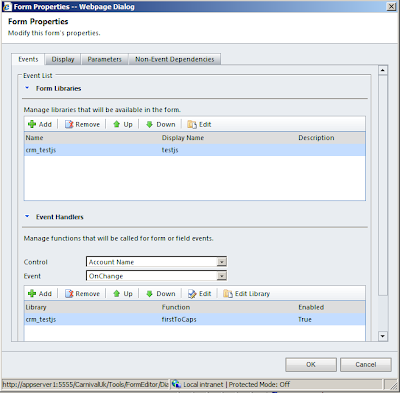
You'll notice I have added a library called "crm_tests.js" to the list of Form Libraries. You'll also notice that in the Event Handlers I have selected "Account Name" and "OnChange". This allows me to hook into this event and call a function when required. In my case I have added a call to my function "firstToCaps":
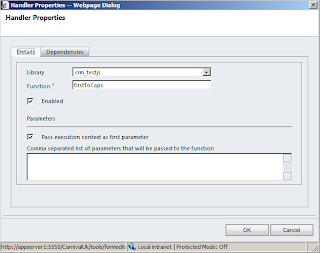
The important part of this event is that I have checked the option to pass the execution context as the first parameter. This gives me access to the field that fired the event.
So, let's go back to that function and take a quick look over what it does:
You've probably put 2 and 2 together at this stage and can see I'm using the execution context "obj" and its function getEventSource to allow me to get and set the value of the calling field.
Save and publish all of that and watch your field auto capitalize!
So how do we do this? Firstly, we'll need a webresource that contains our javascript. Create a .JS file (in my example I'm going to call it test.js) and add the following function to it:
function firstToCaps(obj){
    var fieldVal = obj.getEventSource().getValue();

    var newFieldVal = fieldVal.charAt(0).toUpperCase() + fieldVal.slice(1);
    obj.getEventSource().setValue(newFieldVal);
}
Once you have your JS file saved just add that as a new webresource to your solution.
Next, let's discuss how you hook into an onchange event of a field on a form, because this is what we need to do in order to solve this problem. For this example I'm going to use the account form and the name field.
In our solution let's add the account entity to it. Open up the main form of the account and check out the Form Properties:

You'll notice I have added a library called "crm_tests.js" to the list of Form Libraries. You'll also notice that in the Event Handlers I have selected "Account Name" and "OnChange". This allows me to hook into this event and call a function when required. In my case I have added a call to my function "firstToCaps":

The important part of this event is that I have checked the option to pass the execution context as the first parameter. This gives me access to the field that fired the event.
So, let's go back to that function and take a quick look over what it does:
function firstToCaps(obj){
    var fieldVal = obj.getEventSource().getValue();

    var newFieldVal = fieldVal.charAt(0).toUpperCase() + fieldVal.slice(1);
    obj.getEventSource().setValue(newFieldVal);
}
You've probably put 2 and 2 together at this stage and can see I'm using the execution context "obj" and its function getEventSource to allow me to get and set the value of the calling field.
Save and publish all of that and watch your field auto capitalize!
Thursday, 20 August 2009
Getting the dialog arguments passed into a web page modal dialog
This is especially useful if you use Microsoft CRM. Because it ties in very closely to how the entity forms and grid views communicate to custom web pages etc.
For example, in Microsoft CRM you can edit the ISVConfig to add a button to the toolbar for the entity grid. Set the WinMode=2 (2 basically means a modal dialog) to allow CRM to provide you with the selected entities. So how do we know what items were selected in the entity list? It passes us in a list of IDs as part of the window.dialogArguments.
So, how do we get access to this? Through javascript. Here's the steps:
1. Create the following javascript function (available from MSCRM help pages):
function loadSelectedListItems() {
var sGUIDValues = "";
var selectedValues;
//Make sure window.dialogArguments is available.
if (window.dialogArguments) {
selectedValues = new Array(window.dialogArguments.length - 1);
}
else {
return
}
selectedValues = window.dialogArguments;
if (selectedValues != null) {
for (i = 0; i < selectedValues.length; i++) {
sGUIDValues += selectedValues[i] + ",";
}
document.getElementById('<%= winDialogArguments.ClientID %>').value = sGUIDValues;
}
}
2. Use this function as part of the onload of the body:
<body onload="loadSelectedListItems()">
3. Create a new holder object (in my example an asp textbox) in a hidden division on your form:
<div style="visibility: hidden">
<asp:textbox id="winDialogArguments" runat="server" text="">
</div>
Job done. Just access the Text of the asp textbox server side on the next post back (e.g. click of an OK button) to get the list of IDs.
For example, in Microsoft CRM you can edit the ISVConfig to add a button to the toolbar for the entity grid. Set the WinMode=2 (2 basically means a modal dialog) to allow CRM to provide you with the selected entities. So how do we know what items were selected in the entity list? It passes us in a list of IDs as part of the window.dialogArguments.
So, how do we get access to this? Through javascript. Here's the steps:
1. Create the following javascript function (available from MSCRM help pages):
function loadSelectedListItems() {
var sGUIDValues = "";
var selectedValues;
//Make sure window.dialogArguments is available.
if (window.dialogArguments) {
selectedValues = new Array(window.dialogArguments.length - 1);
}
else {
return
}
selectedValues = window.dialogArguments;
if (selectedValues != null) {
for (i = 0; i < selectedValues.length; i++) {
sGUIDValues += selectedValues[i] + ",";
}
document.getElementById('<%= winDialogArguments.ClientID %>').value = sGUIDValues;
}
}
2. Use this function as part of the onload of the body:
<body onload="loadSelectedListItems()">
3. Create a new holder object (in my example an asp textbox) in a hidden division on your form:
<div style="visibility: hidden">
<asp:textbox id="winDialogArguments" runat="server" text="">
</div>
Job done. Just access the Text of the asp textbox server side on the next post back (e.g. click of an OK button) to get the list of IDs.
Subscribe to:
Posts (Atom)