Ok, so I've pretty much speed read the CRM Field Guide and I have to say, I'm very impressed with it after a first read. For me this is the kind of book that's been missing for a long time - a user guide, an installation guide, a "bet you didn't know CRM did this" guide, a "you're not doing development correctly until you've read this" guide! And want a little confession? 6 or 7 chapters in and I started to realize how much I didn't know about Dynamics CRM!
So a little breakdown on what this book offers. It leads you in with a gentle pat on the bottom by breaking down the interface for you, explaining what each section does or where each link takes you. It gives you just enough information to start on without scaring the living bejaysus out of you, and finishes off chapter 1 with a very solid list of tips from the MVPs themselves.
Next up you learn how to install it. You might say, isn't this the wrong way round? Shouldn't you tell me how to install it before taking me through the interface? Actually no, I think for once somebody has got it right. You get presented with "What CRM is" before you get unleashed with the beast (for lack of a better term). Even though it might seem like I'm pointing out a very simple thing I quite liked this approach, that much that I felt like pointing it out.
After a crash course in installing and using some out of the box features they take you on, well yet again, for lack of a better term, a semi deep-dive. (I really need to learn more terms apparently). They lift the hood a little on how to get the most out of this beast. From optimizing servers to troubleshooting common problems, they've covered it. It's actually quite impressive what they squeezed into this book without going over the top. It seems like they've covered 80% of CRM that most people use and not bothered with the rest. Apart from maybe a brief mention of a few bits if they are worthy of it.
By this stage I'm loving it. I'm getting a little insight into these MVP's heads and I'm not slowing up. I'm reading about processes, solutions and customization's and things are really beginning to hot up. Although, to be honest I'm generally just nodding my head in approval at this stage, because I imagine most CRM developers should already be practicing most of this stuff. But good stuff it is. Cue rapid development and I think to myself this is the bit I've been looking forward too. What approach do you take to customizing those entities and writing web resources? How do you guys organize, not just your CRM solutions, but your Visual Studio solutions and associated plugins and scripts? What coding tips and tricks can you share with us developers? Alas, this is unfortunately the one place that I find this book lacking a little. Granted, they share an abundance of links with you to get any of the information you require. But you left me wanting!
If I could add just 2 more chapters to this book it would be a JavaScript deep-dive and a Developers 101 to CRM.SLN. It didn't need to be overpowering, just some guides on attaching JavaScript events, writing HTML/Silverlight web resources and maybe a little crash course in VS plugins and custom workflow activities. Just a little bit of depth here would have made it a perfect book for me.
But don't let this deter you, as it is a very minor criticism. This is still one awesome book in my opinion. Even if it doesn't go to the technical level I felt it needed to in regard to development, this still is a must read for every developer, implementer and even every user of Dynamics CRM 2011. There's so many little things I have learnt from this book that will improve what I take to each implementation of CRM 2011 I tackle in the future. In short, this book will be a staple in my CRM diet for Dynamics CRM 2011.
All in all good work MVPs!
Tuesday, 2 October 2012

Monday, 1 October 2012
CRM Field Guide out today!
I started getting tweets thick and fast into my feed today in regards to the CRM Field Guide being released. I first spotted it on Larry Lentz's feed. I snapped up a copy pretty much immediately after spotting it's release, and just when I received the payment verification from Julie Yack www.crmfieldguide.com crashes. That's just about sums up how popular I expect this book to be! I noticed that crmfieldguide.com (without the www) still seems to be working, so you might be able to grab a copy from that link.
This book, in my opinion, is going to be one of the most popular CRM 2011 books released for the Microsoft Dynamics CRM platform bar none. It's a book written by MVPs in the CRM community for the CRM community and should become a staple part of any CRM 2011 developers/integrators/deployers diet. It looks like it will deal with just about everything from admin to development and pretty much everything in between that you can think about.
Anyway, I'm now left in a limbo of anticipation, because I cannot get onto the darn download page to get my new book, shucks! I may have to just be patient and wait until tomorrow! I sure am looking forward to that read though.
Good luck with the release guys!
This book, in my opinion, is going to be one of the most popular CRM 2011 books released for the Microsoft Dynamics CRM platform bar none. It's a book written by MVPs in the CRM community for the CRM community and should become a staple part of any CRM 2011 developers/integrators/deployers diet. It looks like it will deal with just about everything from admin to development and pretty much everything in between that you can think about.
Anyway, I'm now left in a limbo of anticipation, because I cannot get onto the darn download page to get my new book, shucks! I may have to just be patient and wait until tomorrow! I sure am looking forward to that read though.
Good luck with the release guys!
Capitalize first letter of a text field in Dynamics CRM
This was asked on a the Dynamics community forum recently, and due to my struggles in posting Javascript as a response I ended up blogging about it instead!
So how do we do this? Firstly, we'll need a webresource that contains our javascript. Create a .JS file (in my example I'm going to call it test.js) and add the following function to it:
Once you have your JS file saved just add that as a new webresource to your solution.
Next, let's discuss how you hook into an onchange event of a field on a form, because this is what we need to do in order to solve this problem. For this example I'm going to use the account form and the name field.
In our solution let's add the account entity to it. Open up the main form of the account and check out the Form Properties:
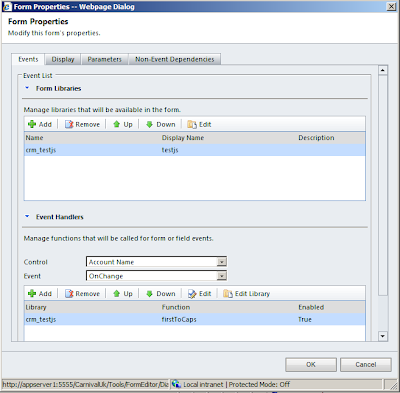
You'll notice I have added a library called "crm_tests.js" to the list of Form Libraries. You'll also notice that in the Event Handlers I have selected "Account Name" and "OnChange". This allows me to hook into this event and call a function when required. In my case I have added a call to my function "firstToCaps":
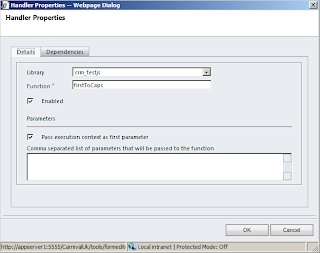
The important part of this event is that I have checked the option to pass the execution context as the first parameter. This gives me access to the field that fired the event.
So, let's go back to that function and take a quick look over what it does:
You've probably put 2 and 2 together at this stage and can see I'm using the execution context "obj" and its function getEventSource to allow me to get and set the value of the calling field.
Save and publish all of that and watch your field auto capitalize!
So how do we do this? Firstly, we'll need a webresource that contains our javascript. Create a .JS file (in my example I'm going to call it test.js) and add the following function to it:
function firstToCaps(obj){
    var fieldVal = obj.getEventSource().getValue();

    var newFieldVal = fieldVal.charAt(0).toUpperCase() + fieldVal.slice(1);
    obj.getEventSource().setValue(newFieldVal);
}
Once you have your JS file saved just add that as a new webresource to your solution.
Next, let's discuss how you hook into an onchange event of a field on a form, because this is what we need to do in order to solve this problem. For this example I'm going to use the account form and the name field.
In our solution let's add the account entity to it. Open up the main form of the account and check out the Form Properties:

You'll notice I have added a library called "crm_tests.js" to the list of Form Libraries. You'll also notice that in the Event Handlers I have selected "Account Name" and "OnChange". This allows me to hook into this event and call a function when required. In my case I have added a call to my function "firstToCaps":

The important part of this event is that I have checked the option to pass the execution context as the first parameter. This gives me access to the field that fired the event.
So, let's go back to that function and take a quick look over what it does:
function firstToCaps(obj){
    var fieldVal = obj.getEventSource().getValue();

    var newFieldVal = fieldVal.charAt(0).toUpperCase() + fieldVal.slice(1);
    obj.getEventSource().setValue(newFieldVal);
}
You've probably put 2 and 2 together at this stage and can see I'm using the execution context "obj" and its function getEventSource to allow me to get and set the value of the calling field.
Save and publish all of that and watch your field auto capitalize!
Friday, 17 August 2012
IE Crashes when I close a CRM window
This is probably one of the first things you'll come across when you've upgraded to Internet Exporer 9 and are closing Microsoft Dynamics CRM pages before they've fully loaded. And it's dreadfully annoying!
Microsoft have noticed this problem and published a work around. Which is a simple registry change:
For full details on the problem see here: http://support.microsoft.com/kb/2698959
Microsoft have noticed this problem and published a work around. Which is a simple registry change:
- Point to the Start menu, click Run, and then type regedit.
- Navigate to HKEY_Current_User\Software\Microsoft\Internet Explorer\Main
- Right-click Main, and then select new DWORD (32-bit) Value
- Enter HangRecovery as the name.
- The default value will be 0.
For full details on the problem see here: http://support.microsoft.com/kb/2698959
Tuesday, 31 July 2012
Advanced find and many-to-many relationships
Here's one that caught me out for a little while today. Earlier today I set up a new entity called Media Code with a many-to-many relationship with Sales Literature. I put in my required settings, saved it, and then went about my daily business.
Later on in the day I want to create a Fetch Query to locate any Sales Literature that is linked to a particular Media Code. So, in typical developer mode and having forgotten everything I did earlier in the day, I open up an advanced find, select Sales Literature from the list, look to filter by Media Code... but low and behold there's no Media Code option in the related list?!? To double check I haven't gone insane I change my advanced find and select Media Code from the list of entities... and to my complete amazement Sales Literature is there right in front of my eyes, as bold as brass, under related entities.
What on earth is going on at all I hear you ask! Well, today I learnt something new about Microsoft Dynamics CRM and it was this here:

I did not know until today that this option also blocks it from the advanced find. Shock horror!
Hopefully this saves somebody else 30 minutes of their day pulling hair out of their head...
Later on in the day I want to create a Fetch Query to locate any Sales Literature that is linked to a particular Media Code. So, in typical developer mode and having forgotten everything I did earlier in the day, I open up an advanced find, select Sales Literature from the list, look to filter by Media Code... but low and behold there's no Media Code option in the related list?!? To double check I haven't gone insane I change my advanced find and select Media Code from the list of entities... and to my complete amazement Sales Literature is there right in front of my eyes, as bold as brass, under related entities.
What on earth is going on at all I hear you ask! Well, today I learnt something new about Microsoft Dynamics CRM and it was this here:

I did not know until today that this option also blocks it from the advanced find. Shock horror!
Hopefully this saves somebody else 30 minutes of their day pulling hair out of their head...
Thursday, 19 July 2012
Hey dynamics, where's my cross browser support?
So, we've hit Q3 and I must have had my head buried in the sand, because I never noticed until recently that the cross browser support for Microsoft Dynamics CRM 2011 never hit in Q2. So what happened? Where is it?!?
Looks like MS hit some complications and this got pulled from the Q2 release. Thankfully, it's still on the agenda but has been delayed until Q4:
https://community.dynamics.com/product/crm/crmnontechnical/b/crmconnection/archive/2012/07/06/q2-2012-service-update-new-delivery-schedule.aspx
Must keep my eye a little closer to the ball!
Looks like MS hit some complications and this got pulled from the Q2 release. Thankfully, it's still on the agenda but has been delayed until Q4:
https://community.dynamics.com/product/crm/crmnontechnical/b/crmconnection/archive/2012/07/06/q2-2012-service-update-new-delivery-schedule.aspx
Must keep my eye a little closer to the ball!
Wednesday, 18 July 2012
Importing Marketing List Members... the fast way
A common bane in many developers lives is the inability to import marketing list members directly using an asynchronous import. Even in Microsoft Dynamics CRM 2011 this is still an issue. If you're reading this you've probably come across this too. The most common solution I've seen (and read) for this is importing one by one. A piece of code I came across recently did exactly this and (a stripped down version...) looked something like the following:
... and so on. In practice this works, but there's a lot wrong with it. Aside from the fact that it's going to be slow due to hitting the server every time for each member, it's going to hammer that server until it get's all those members imported.
A better, and quite possibly the fastest way to get this imported is by using a custom "holding" entity, drive a Dynamic Marketing List off this entity and then convert this Dynamic Marketing List to a static marketing list (if required).

This will bring back all the contacts required for my marketing list. All good so far.
Sample: Import Data Using Complex Data Map
Data Import Entities
You'll notice another problem I ran into when researching this, and it's how everyone has gone dog crazy on early bound objects. I'm not saying they're bad, but I'm not as big a fan as most. Or maybe I'm just a freak for late bound objects. Mainly because it saves me the pain of:
Several ways around the above, but as you may have gathered by now, my favourite is use late binding ;)
So, we can break an import and what needs to happen down to about 7 basic steps (8 if you want to wait for the import to complete):
An interesting point to note is that you don't have to wait for the parse to complete before kicking off the transform and import. When MS CRM receives these requests will just queue them up until the others have completed.
When you're done you'll end up with code that looks something like this (You'll notice that this doesn't look exactly like the sites I linked above due to late binding):
You most likely won't end up with all that code in 1 place like this, or at least I hope not! But that's the general gist of what needs to happen.
Set up a new Marketing List, pop that into the "query" field of a Marketing list, and set the "type" to dynamic (1) and off we go.
Job Done.
I'd like to take this opportunity to thank that Hetfield dude for being frikken awesome and passing on the awesome. More specifically, his idea of using a dynamic marketing list.
Word.
while (true)
{
    var record = MarketingListCSVFile.GetNextCSVRecord();

    if (record == null)
    {
        // eof - no more records to process
        break;
    }

    Entity contact = GetContact(record[ContactField]);

 AddListMembersListRequest request = new AddListMembersListRequest { ListId = MarketingList.Id, MemberIds = new Guid[] { contact.Id } };
    AddListMembersListResponse response = (AddListMembersListResponse)this.Service.Execute(request);
    // ...
}

AttachMarketingListToCampaign(MarketingList, MarketingListCSVFile.CampaignActivityCode);
... and so on. In practice this works, but there's a lot wrong with it. Aside from the fact that it's going to be slow due to hitting the server every time for each member, it's going to hammer that server until it get's all those members imported.
A better, and quite possibly the fastest way to get this imported is by using a custom "holding" entity, drive a Dynamic Marketing List off this entity and then convert this Dynamic Marketing List to a static marketing list (if required).
The Holding Entity
Firstly, we need to create an entity that has all the required fields on it that will allow us to drive a query off. The only requirement here is that it has a relationship to the Cotact entity, because a query for a Dynamic Marketing list must return a list of contacts. In my case I needed to link these contacts back to a campaign activity, which involved importing a code to give me the ability to do this. All in all my new custom entity contains the following:- Contact (Lookup to contact)
- Campaign Activity Code (string)
The query
Next we need to make sure we can drive the correct query off this. Pop open an advanced find and select the contact entity type from the list. My query looked like this:
This will bring back all the contacts required for my marketing list. All good so far.
The import
Next up, how do we kick off an asynchronous import via the code? If you haven't done this before it's worthwhile having a read of the following links first. Once you've digested all, or at least the applicable parts of this you're ready to write your import:Sample: Import Data Using Complex Data Map
Data Import Entities
You'll notice another problem I ran into when researching this, and it's how everyone has gone dog crazy on early bound objects. I'm not saying they're bad, but I'm not as big a fan as most. Or maybe I'm just a freak for late bound objects. Mainly because it saves me the pain of:
- Making sure everyone has the latest and greatest definitions in their project
- Waiting for some other bloke to create his entity before I can write my "something or other" that relies on just 1 field in that entity...
Several ways around the above, but as you may have gathered by now, my favourite is use late binding ;)
So, we can break an import and what needs to happen down to about 7 basic steps (8 if you want to wait for the import to complete):
- Create an import map
- Create all your column mappings linked to your import map
- Create the import
- Create the import file linked to the import and import map
- Kick off the parse step
- Kick off the transform step
- Kick off the physical import.
An interesting point to note is that you don't have to wait for the parse to complete before kicking off the transform and import. When MS CRM receives these requests will just queue them up until the others have completed.
When you're done you'll end up with code that looks something like this (You'll notice that this doesn't look exactly like the sites I linked above due to late binding):
var importMap = new Entity("importmap");
importMap.Attributes["name"] = "Import Map Name";
importMap.Attributes["source"] = CsvFileName;
importMap.Attributes["description"] = "Import Description...";
importMap.Attributes["entitiesperfile"] = new OptionSetValue(1); // 1 = Single Entity Per File
Guid importMapId = service.Create(importMap);

// Create a column mapping for the contact lookup field.
var contactColumnMapping = new Entity("columnmapping");
contactColumnMapping.Attributes["sourceattributename"] = "Contact";
contactColumnMapping.Attributes["sourceentityname"] = "Contact_1";
contactColumnMapping.Attributes["targetattributename"] = "new_contact";
contactColumnMapping.Attributes["targetentityname"] = "new_marketinglistcontact";
contactColumnMapping.Attributes["importmapid"] = new EntityReference("importmap", importMapId);
contactColumnMapping.Attributes["processcode"] = new OptionSetValue(1); // 1 = Process
Guid contactColumnMappingId = service.Create(contactColumnMapping);

// If you have special codes you may need a lookup mapping for the contact
var contactLookupMapping = new Entity("lookupmapping");
contactLookupMapping.Attributes["columnmappingid"] = new EntityReference("columnmapping", urnColumnMappingId);
contactLookupMapping.Attributes["processcode"] = new OptionSetValue(1); // 1 = Process
contactLookupMapping.Attributes["lookupentityname"] = "contact";
contactLookupMapping.Attributes["lookupattributename"] = "new_code";
contactLookupMapping.Attributes["lookupsourcecode"] = new OptionSetValue(1); // 1 = Source
Guid contactLookupMappingId = service.Create(contactLookupMapping);

// Create a column mapping for the campaign activity code field.
var campaignActivityColumnMapping = new Entity("columnmapping");
campaignActivityColumnMapping.Attributes["sourceattributename"] = "Campaign Activity Code";
campaignActivityColumnMapping.Attributes["sourceentityname"] = "Contact_1";
campaignActivityColumnMapping.Attributes["targetattributename"] = "new_campaignactivityid";
campaignActivityColumnMapping.Attributes["targetentityname"] = "new_marketinglistcontact";
campaignActivityColumnMapping.Attributes["importmapid"] = new EntityReference("importmap", importMapId);
campaignActivityColumnMapping.Attributes["processcode"] = new OptionSetValue(1); // 1 = Process
Guid campaignActivityColumnMappingId = service.Create(campaignActivityColumnMapping);

// Create a column mapping for the name field.
var nameColumnMapping = new Entity("columnmapping");
nameColumnMapping.Attributes["sourceattributename"] = "Name";
nameColumnMapping.Attributes["sourceentityname"] = "Contact_1";
nameColumnMapping.Attributes["targetattributename"] = "new_name";
nameColumnMapping.Attributes["targetentityname"] = "new_marketinglistcontact";
nameColumnMapping.Attributes["importmapid"] = new EntityReference("importmap", importMapId);
nameColumnMapping.Attributes["processcode"] = new OptionSetValue(1); // 1 = Process
Guid nameColumnMappingId = service.Create(nameColumnMapping);

// Create Import
var import = new Entity("import");
import.Attributes["modecode"] = new OptionSetValue(0);
import.Attributes["name"] = "Importing data";
Guid importId = service.Create(import);

// Create the actual file...
var file = new Entity("importfile");
file.Attributes["content"] = File.ReadAllText(CsvFileName);
file.Attributes["name"] = CsvFileName;
file.Attributes["isfirstrowheader"] = true;
file.Attributes["source"] = CsvFileLocation;
file.Attributes["sourceentityname"] = "Contact_1";
file.Attributes["importmapid"] = new EntityReference("importmap", importMapId);
file.Attributes["importid"] = new EntityReference("import", importId);
file.Attributes["targetentityname"] = "new_marketinglistcontact";
file.Attributes["size"] = ((string)file.Attributes["content"]).Length.ToString();
file.Attributes["fielddelimitercode"] = new OptionSetValue(2); // 2 = Comma
file.Attributes["datadelimitercode"] = new OptionSetValue(1); // 1 = Double Quote
file.Attributes["processcode"] = new OptionSetValue(1); // 1 = Process
file.Attributes["usesystemmap"] = true;
Guid fileId = service.Create(file);

var parseRequest = new ParseImportRequest { ImportId = importId };
service.Execute(parseRequest);

var transRequest = new TransformImportRequest { ImportId = importId };
service.Execute(transRequest);

// Assign the request the id of the import we want to begin
var request = new ImportRecordsImportRequest { ImportId = importId };
var response = (ImportRecordsImportResponse)service.Execute(request);
You most likely won't end up with all that code in 1 place like this, or at least I hope not! But that's the general gist of what needs to happen.
Dynamic Marketing Lists
So what the above gives you is a very quick way to get the data imported into MS Dynamics CRM. But how do we use this? Let's grab that fetch xml from the earlier query and inject our campaign code into that:
string fetchXml = string.Format(
    "<fetch version='1.0' output-format='xml-platform' mapping='logical' distinct='true'>" +
    "  <entity name='contact'>" +
    "    <attribute name='fullname' />" +
    "    <attribute name='contactid' />" +
    "    <order attribute='fullname' descending='false' />" +
    "    <link-entity name='new_marketinglistcontact' from='new_contact' to='contactid' alias='aa'>" +
    "      <filter type='and'>" +
    "        <condition attribute='new_campaignactivitycode' operator='eq' value='{0}' />" +
    "      </filter>" +
    "    </link-entity>" +
    "  </entity>" +
    "</fetch>",
    campaignActivityCode);
Set up a new Marketing List, pop that into the "query" field of a Marketing list, and set the "type" to dynamic (1) and off we go.
Converting from a Dynamic to a Static Marketing List
Final step is to convert this to a Static Marketing List. This is easily achievable using the "CopyDynamicListToStaticRequest":var copyDynamicListToStaticRequest = new CopyDynamicListToStaticRequest { ListId = ml.Id };
var response = (CopyDynamicListToStaticResponse)ml.Service.Execute(copyDynamicListToStaticRequest);
staticMarketingList = new MarketingList(ml.Service, response.StaticListId)
{ Name = MarketingListCSVFile.MarketingListName, Locked = false };
Job Done.
I'd like to take this opportunity to thank that Hetfield dude for being frikken awesome and passing on the awesome. More specifically, his idea of using a dynamic marketing list.
Word.
Subscribe to:
Posts (Atom)