Quick one from me today. Quite often I come across this issue where it tells me the SQLAgent service is not running on the server when trying to import an organization or install a CRM server.
9 times out of 10 this comes down to user rights. I believe the right it is being denied is interrogating the the windows server to get a list of services running so that it can check for SQL Agent. Which means adding the user as a sys admin to SQL often won't help.
Try adding the user to the Local Admins group on the SQL box as well and this error should go away.
Showing posts with label SQL Server. Show all posts
Showing posts with label SQL Server. Show all posts
Friday, 23 January 2015

Friday, 12 April 2013
MSCRM and the dreaded rsProcessingAborted error
There are several reasons why this error can happen most of which are quite easy to solve. The key to solving it is knowing how to analyse it properly.
The most common reasons I've come across for getting this problem are as follows:
So, how exactly would you investigate this to get to the root cause? First, a quick checklist:
After verifying the above and if the report still isn't working you need to do a bit more in depth analysis to get to the root of a problem like this.

Note: As mentioned by Nathan in the comments, he did not have the ability to modify the AD groups of this user. So he managed to solve the problem by accessing the 'Reporting Services Configuration Manager' on the Reporting Server and under the 'Exectution Account' tab he simply unchecked the box here. This meant the report would authenticate through the CRM credentials (which did have access) and not the SSRS account. Worth a try if you have the same issue.

The Crm App Server FQDN might be something like CrmAppServerName.domain.com or something slightly different, so you'll need to figure this out for your specific environment. For example, if your server name is CrmAppServer and your domain is FooDomain.local you will have something like the following:
Next, if SQL also runs under a domain account we'll need to log onto the SQL server and run similar commands for the SQL account:
The most common reasons I've come across for getting this problem are as follows:
- A problem within the report or a sub report.
- Problems with Data Sources set on the reports
- Reporting Extensions not installed on the report server
- SSRS Logon context not having adequate rights
- CRM App Pool running under a user context and not configured correctly
Generally, the issue you'll face is initially not having an awful lot of information to go on. When you run the report all you get back is:
rsProcessingAborted - An error has occurred during report processing
- Open up Reporting Services: http://[SSRS Server Name]/Reports
- Are the Data Sources set correctly? The report should be point to:
- FetchXml reports: /[ORGNAME]_MSCRM/CustomReports/MSCRM_FetchDataSource
- SQL reports: /[ORGNAME]_MSCRM/CustomReports/MSCRM_DataSource
- If you open up Deployment Manager does it give you a warning about reporting extensions not being installed? If so you will need to install/re-install reporting extensions
After verifying the above and if the report still isn't working you need to do a bit more in depth analysis to get to the root of a problem like this.
Get coffee
Yes, you could be working on this for a while...Run the report in Report Services
If nothing worked so far, check if it will run in reporting services. As I mentioned above, the URL to get to your reporting services is:
http://[SSRS Server Name]/Reports
Within here your custom reports will live in a folder like the following:
[Organization Name]_MSCRM/CustomReports
Open up the report you're having a problem with.
Tip: You should get a page asking for your user name and password if the report is set up correctly, and you will need to enter in the following:
Username: Your systemuserid from the systemuser table for your user record.
Password: Your organizationid from the organization table within MSCRM_Config
If the report doesn't work then it might give you more information about the problem that will lead to the solution. Quite commonly you might see an error such as "Cannot create a connection to Data Source XYZ" or something like this. Or maybe it will be something syntactically wrong with the report and not related to the Data Source. If so it's problem with the report itself that you will have to fix.
If it does run, and you've confirmed the above check list, then the only questions I can think of is:
1. Have you been using shared datasets? If so then the bad news is I don't think these will work with Dynamics CRM. Although, I haven't confirmed if shared datasets can be used with Dynamics CRM so if anyone can confirm this please let me know. But generally, if I see a shared dataset I immediately convert it to an embedded dataset and link it to a shared data source instead. If you've edited it using Report Builder you should be able to choose the MSCRM_DataSource for SQL or MSCRM_FetchDataSource for FetchXml. If you're using visual studio you can create an embedded datasource and then convert it to shared afterwards.
2. Have you been using a child/parent folder structure for parent/sub reports? If so, I don't think you can easily do this in CRM either. I'm sure it's possible, but it's probably tedious to get working. So you'll need to make sure they're all in the same folder and correctly linking to each other.
1. Have you been using shared datasets? If so then the bad news is I don't think these will work with Dynamics CRM. Although, I haven't confirmed if shared datasets can be used with Dynamics CRM so if anyone can confirm this please let me know. But generally, if I see a shared dataset I immediately convert it to an embedded dataset and link it to a shared data source instead. If you've edited it using Report Builder you should be able to choose the MSCRM_DataSource for SQL or MSCRM_FetchDataSource for FetchXml. If you're using visual studio you can create an embedded datasource and then convert it to shared afterwards.
2. Have you been using a child/parent folder structure for parent/sub reports? If so, I don't think you can easily do this in CRM either. I'm sure it's possible, but it's probably tedious to get working. So you'll need to make sure they're all in the same folder and correctly linking to each other.
Check Reporting Services logs
If all is still unwell, you will need to check the reporting services logs. You can also check Event Logs on the SSRS server, but the Reporting Server logs will give you much more detail. These will be located on the SSRS server at a location similar to the following:
C:\Program Files\Microsoft SQL Server\MSRS11.MSSQLSERVER\Reporting Services\LogFiles
But, before we open that file let's go back to the report in CRM and generate the rsProcessingAborted error again. Once you have go back to the SSRS server and open the latest log file in that folder. There are many types of errors you will see, some of which I will attempt to deal with here:
SSRS Account Rights
If you see an error like this:
e ERROR: Throwing Microsoft.ReportingServices.ReportProcessing.ReportProcessingException: , Microsoft.ReportingServices.ReportProcessing.ReportProcessingException: Cannot create a connection to data source 'CRM'. ---> Microsoft.Crm.Reporting.DataExtensionShim.Common.ReportExecutionException: Immediate caller DOMAIN\SSRS_Account has insufficient privilege to run report as user S-[XYZ]
This generally means you are running the SSRS service under a domain account (as opposed to NetworkService or similar) and it doesn't have adequate rights. In the above example the user "SSRS_Account" was our domain account and it needs to be added to the following groups:
[DOMAIN]\PrivReportingGroup {GUID}
[DOMAIN]\ReportingGroup {GUID}
[DOMAIN]\PrivUserGroup {GUID}
These must match the same groups that exist in the security section of the [ORGNAME]_MSCRM database. For example:
Note: You should not add the SSRS_Account to the group SQLAccessGroup. If you do you may encounter errors installing / reinstalling Reporting Extensions such as this:
A Microsoft Dynamics CRM Server component is using the same account as the instance of SQL Server Reporting Services
SPN / SSPI issues
If you see an error like this:
Microsoft.ReportingServices.ReportProcessing.ReportProcessingException: Query execution failed for dataset 'DSMain'. ---> Microsoft.Crm.Reporting.DataExtensionShim.Common.ReportExecutionException:
Microsoft.Crm.CrmException: An unexpected error occurred.
System.ServiceModel.Security.SecurityNegotiationException: A call to SSPI failed, see inner exception.
System.Security.Authentication.AuthenticationException: A call to SSPI failed, see inner exception.
System.ComponentModel.Win32Exception: The target principal name is incorrect --->
For this error 9 times out of 10 you're running the CRM app pool in IIS under the context of a domain user. To fix this problem you'll have to be a little careful. You should NOT attempt the following during working hours or on a live and active system. Basically what you need is a few SPN records and a bit of trust to help the user context hit the servers correctly. For the sake of this post let's say the user account used on the IIS Application Pool is CRMAPP_Account and SQL Server runs under the context of SQL_Account.
Firstly, you'll need to ensure the account "CRMAPP_Account" has the option to "trust this user for delegation to any service (Kerberos only)":

Next, log onto the CRM Appliction server and run the following commands:
setspn -a HTTP/[Crm App Server Name] [Domain]\CRMAPP_Account
setspn -a HTTP/[Crm App Server FQDN] [Domain]\CRMAPP_Account
The Crm App Server FQDN might be something like CrmAppServerName.domain.com or something slightly different, so you'll need to figure this out for your specific environment. For example, if your server name is CrmAppServer and your domain is FooDomain.local you will have something like the following:
setspn -a HTTP/CrmAppServer FooDomain\CRMAPP_Account
setspn -a HTTP/CrmAppServer.FooDomain.local FooDomain\CRMAPP_Account
Next, if SQL also runs under a domain account we'll need to log onto the SQL server and run similar commands for the SQL account:
setspn -a MSSQLSvc/[SQL Server Name]:1433 [Domain]\SQL_Account
setspn -a MSSQLSvc/[Sql Server FQDN]:1433 [Domain]\SQL_Account
Again, the SQL Server FQDN will be the fully qualified domain name of your SQL Server. So you might have something like this: SQLServer.domain.com:1433. Once you have figured this out, run the above commands and it will add all the required SPNs to get rid of the problem.
9 times out of 10 this should be all you need to do...
9 times out of 10 this should be all you need to do...
No wait! That broke my CRM authentication?!?
And this is why we need to do this outside of working hours! After doing all of this, and as pointed out by James in the comments (thank you!), you may need to enable the site to use the app pool credentials.
If IIS has not been set up for windows authentication you may still notice a problem every time you try access CRM outside of the App Server. You'll be repeatedly prompted for your user details and eventually will see an error like "No authentication mode available" or something similar to this. Firstly, I've read mixed reports on whether you need to enable or disable Kernal-mode authentication, but I have found that it needs to be enabled. The steps do do this are

If IIS has not been set up for windows authentication you may still notice a problem every time you try access CRM outside of the App Server. You'll be repeatedly prompted for your user details and eventually will see an error like "No authentication mode available" or something similar to this. Firstly, I've read mixed reports on whether you need to enable or disable Kernal-mode authentication, but I have found that it needs to be enabled. The steps do do this are
- On the Microsoft Dynamics CRM server(s), open up IIS Manager:
- Start > Run: inetmgr
- Expand SERVER > Sites
- Click on Microsoft Dynamics CRM
- Within the Features view, double click on Authentication
- Right-click on Windows Authentication and go to Advanced Settings
- Check "Enable Kernel-mode authentication"
- Click Ok

Here's an MS article describing a similar issue with web resources http://support.microsoft.com/kb/2536453.
Another problem I have found on some servers is the order of providers can cause problems. If the above doesn't fix the authentication then check the following out too:
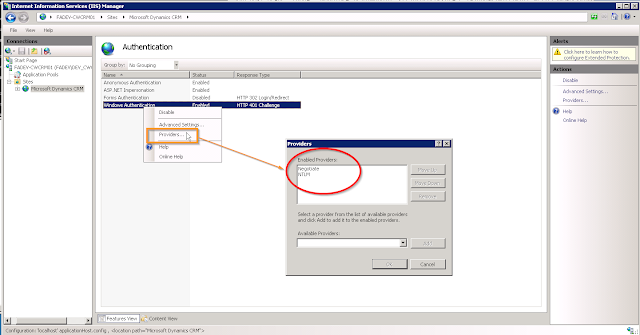
Another problem I have found on some servers is the order of providers can cause problems. If the above doesn't fix the authentication then check the following out too:
- Navigate to Authentication again as per the previous steps
- Right-click on Windows Authentication and go to Providers
- Ensure Negotiate is the first provider and NTLM is the second
- Click Ok

Conclusion
That covers a lot of the problems I have run into. I know there's more out there that I haven't, but hopefully these are the most common that people run into. If you have run into some kind of Reporting Services issue I haven't dealt with here don't be afraid to ask and I'll help if I can!
Friday, 13 November 2009
SQL Server - How do I select just the date portion of a datetime field
There are a few ways to do this, but I find the easiest is to use the float version of a datetime and crop off the decimal portion (right of the decimal place is the time portion)
DECLARE @currentDate DateTime
SET @currentDate = Cast(Floor(Cast(GetDate() as Float )) As DateTime)
DECLARE @currentDate DateTime
SET @currentDate = Cast(Floor(Cast(GetDate() as Float )) As DateTime)
Friday, 9 October 2009
"Failed to pause full-text catalog for backup" while backing up a database
So you're trying to back up your database and you get the following error:
There are a couple of things that could be up here. Try all of the following and see if that get's you out of this:
1. Check if the full text service is running. This can be found by opening up the windows services and locating either "SQL Server Full Text Search" or "Microsoft Search Service". If it's not running or disabled then this may be your problem- Retry the backup.
2. Ensure full text catalog is enabled on the databases by running the following command:
exec sp_fulltext_database 'enable'
Retry the backup.
3. If all of the above fails take a note of how the full text catalog is set up on the database in question. It should be accessible via Storage -> Full Text Catalogs. When you see what tables and fields it references try dropping and recreating the full text catalog. Retry the backup.
Hope this helps!

Failed to pause full-text catalog for backup. Backup was aborted. Check to make sure Microsoft Full-text Service is running properly and SQL server service have access to full-text service.
There are a couple of things that could be up here. Try all of the following and see if that get's you out of this:
1. Check if the full text service is running. This can be found by opening up the windows services and locating either "SQL Server Full Text Search" or "Microsoft Search Service". If it's not running or disabled then this may be your problem- Retry the backup.
2. Ensure full text catalog is enabled on the databases by running the following command:
exec sp_fulltext_database 'enable'
Retry the backup.
3. If all of the above fails take a note of how the full text catalog is set up on the database in question. It should be accessible via Storage -> Full Text Catalogs. When you see what tables and fields it references try dropping and recreating the full text catalog. Retry the backup.
Hope this helps!
Tuesday, 29 September 2009
DateTime.Min != SqlDateTime.Min
Yes, as the title says, .Net DateTime Minimum does not equal Sql Servers equivalent. For whatever reason you come across this gem of an issue you have a couple of options to get around it.
1. Use a .net Nullable datetime instead. i.e. Declare your "DateTime" as "DateTime?". Putting question marks after a lot of .Net variable types in C# turns them into nullable types.
2. If you really do need the min date, use SqlDateTime.Min.Value. "Value" gives you access to a DateTime type containing SQLs min date.
1. Use a .net Nullable datetime instead. i.e. Declare your "DateTime" as "DateTime?". Putting question marks after a lot of .Net variable types in C# turns them into nullable types.
2. If you really do need the min date, use SqlDateTime.Min.Value. "Value" gives you access to a DateTime type containing SQLs min date.
Wednesday, 26 August 2009
SQL Server - Select rows of a "max date" from a table (using ROW_NUMBER() OVER)
I often come across different requirements where I need to get the "top row" where certain criteria exists. It often applies to VAT Rates, Exchange Rates, even historical data where a different record may apply depending on the scenario. For this example, let's use VAT rates.
Let's create sample data using the following:
create table #myvattable (vatname nvarchar(50), effectivedate datetime)
insert #myvattable values('Rate A', '01/01/2009')
insert #myvattable values('Rate B', '01/01/2009')
insert #myvattable values('Rate C', '01/01/2009')
insert #myvattable values('Rate A', '01/02/2009')
insert #myvattable values('Rate B', '01/02/2009')
insert #myvattable values('Rate B', '01/02/2008')
So, we have several instances of the same "Rate" in the table that have different effective dates. Now, let's take this requirement:
I want to retrieve all VAT rates applicable for a certain date. How do we do this?
Step 1 - use a row_number() clause on your dataset:
select * from
(
select row_number() over (partition by a.vatname order by a.vatname, a.effectivedate desc) as rownum,
a.vatname, a.effectivedate
from #myvattable a
)
tbl
This simply puts a row_number clause on each row partitioning by the vatname. This returns a result set similar to this:
rownum vatname effectivedate
------ ------------- -----------------------
1 Rate A 2009-01-02 00:00:00.000
2 Rate A 2009-01-01 00:00:00.000
1 Rate B 2009-01-02 00:00:00.000
2 Rate B 2009-01-01 00:00:00.000
3 Rate B 2008-01-02 00:00:00.000
1 Rate C 2009-01-01 00:00:00.000
Ok, so what does this do for us? It effectively ranks the rows by each vatname so that we can see which ones are most applicable. Basically we want all the 1's.
Step 2 - Filter the rownums.
So our query becomes this:
select * from
(
select row_number() over (partition by a.vatname order by a.vatname, a.effectivedate desc) as rownum,
a.vatname, a.effectivedate
from #myvattable a
)
tbl
where rownum = 1
Ok, pretty much there now. The only step really that is left is... what if someone wants historical data? This query is fixed to the latest most applicable vatrate.
Step 3 - Make the date flexible
select * from
(
select row_number() over (partition by a.vatname order by a.vatname, a.effectivedate desc) as rownum,
a.vatname, a.effectivedate
from #myvattable a
where effectivedate <= @DATEVARIABLE )
tbl
where rownum = 1
So, @DATEVARIABLE could be a parameter/variable... or, even better, a field from another joined table.
Let's create sample data using the following:
create table #myvattable (vatname nvarchar(50), effectivedate datetime)
insert #myvattable values('Rate A', '01/01/2009')
insert #myvattable values('Rate B', '01/01/2009')
insert #myvattable values('Rate C', '01/01/2009')
insert #myvattable values('Rate A', '01/02/2009')
insert #myvattable values('Rate B', '01/02/2009')
insert #myvattable values('Rate B', '01/02/2008')
So, we have several instances of the same "Rate" in the table that have different effective dates. Now, let's take this requirement:
I want to retrieve all VAT rates applicable for a certain date. How do we do this?
Step 1 - use a row_number() clause on your dataset:
select * from
(
select row_number() over (partition by a.vatname order by a.vatname, a.effectivedate desc) as rownum,
a.vatname, a.effectivedate
from #myvattable a
)
tbl
This simply puts a row_number clause on each row partitioning by the vatname. This returns a result set similar to this:
rownum vatname effectivedate
------ ------------- -----------------------
1 Rate A 2009-01-02 00:00:00.000
2 Rate A 2009-01-01 00:00:00.000
1 Rate B 2009-01-02 00:00:00.000
2 Rate B 2009-01-01 00:00:00.000
3 Rate B 2008-01-02 00:00:00.000
1 Rate C 2009-01-01 00:00:00.000
Ok, so what does this do for us? It effectively ranks the rows by each vatname so that we can see which ones are most applicable. Basically we want all the 1's.
Step 2 - Filter the rownums.
So our query becomes this:
select * from
(
select row_number() over (partition by a.vatname order by a.vatname, a.effectivedate desc) as rownum,
a.vatname, a.effectivedate
from #myvattable a
)
tbl
where rownum = 1
Ok, pretty much there now. The only step really that is left is... what if someone wants historical data? This query is fixed to the latest most applicable vatrate.
Step 3 - Make the date flexible
select * from
(
select row_number() over (partition by a.vatname order by a.vatname, a.effectivedate desc) as rownum,
a.vatname, a.effectivedate
from #myvattable a
where effectivedate <= @DATEVARIABLE )
tbl
where rownum = 1
So, @DATEVARIABLE could be a parameter/variable... or, even better, a field from another joined table.
Subscribe to:
Posts (Atom)