Monday, 18 March 2013

Some of the things I love and hate about Silverlight

After a previous job I had decided Silverlight wasn't the greatest tool in the world and vowed to push HTML5 as a better solution for MS CRM in the future. But, in my current position we use Silverlight quite a lot so I ended up back developing some pages in it again. I constantly ask the question why people continue to develop on a framework that will be eventually unsupported? But I guess the answer is people learnt to love the beast and found it hard to move on! And I have to admit, one of the beautiful things about Silverlight is a lot of those niceties you get from WPF also exist in Silverlight, such as slick interfaces and speedy UI development.

Unfortunately that probably just about completes the list of things I love about silverlight. Because with its slightly different and vastly reduced framework it also brings a lot of nuisances. These are noticeable in the controls, libraries (or lack thereof) and general functionality. Here are a few of the most recent/common issues I have come across:

Text boxes

There are a few problems with text boxes, but only one I shall mention here. Ever try setting up an autoselect text in Silverlight? Yes, you'll notice you don't have an option or property to do this. This to me is a massive gaping hole, because it's one of the very first things I write or implement every time I write a new Silverlight page with text fields. A really neat way around this is to create new behaviour for yourself and enable it via a property on the Silverlight page. Effectively all this behaviour needs to do is capture the focus event in the background and select all text upon entry

Combo boxes.

There are several annoying issues with Silverlight combo boxes. Firstly, have you ever tried to use a combo box in a really height restricted Silverlight page? It's just not at all viable and is something I have hit a few times in MS Dynamics CRM. If you need to develop a small web resource for a form that will contain a combo box you'll find it won't work, because your "frame" or area of use is restricted to the size of the Silverlight control, a bit like flash I guess. So even if your page is huge this is the sort of behaviour you'll notice happening on a combo box similar to the "Cars" combo box on my form:


The next problem with combo boxes that is quite annoying is if you add a blank row to a combo box it doesn't display it with the correct height:


See how we just have a little slither of a line above "Ford"? Well that's the blank row. This is incredibly annoying, but thankfully there's a quick but slightly dirty way to get around this, instead of using an empty string add a space to the string and suddenly it display it correctly.

Another nuisance of combo boxes is the direction the item list renders. Because of the first problem with Silverlight not being able to use the space outside of the control's frame it needs to be clever in which direction, up or down, the item list is rendered. This behaviour works fine first time around, as in the item list will render upwards if there is more room in that direction. But after that first time you've used the combo box it all goes a bit pear shaped:
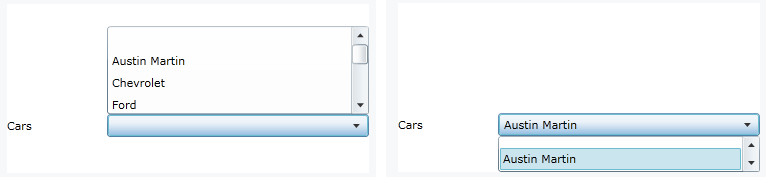

(Yes, I notice "Aston" has a fantastic spelling fail... but I really can't be bothered to update the screen shot!)

There are a few ways to fix this, but the 2 best solutions, in my opinion, are

  1. Instead of binding to custom objects create ComboBoxItems and bind your combo box to a collection of those instead. (The Silverlight bug only rears its head when bound to custom objects)
  2. Create your own combo box template with the correct behaviour (can't believe I just wrote that!)
There are more combo box nuisances but these for me are the worst. Apart from the first one, which is more of a limitation, those second 2 are bugs that should never have made it to the public community.

Silverlight, JSON and dynamic types

The next thing I hate about Silverlight is the choice of deprecated libraries. I understand that they had to reduce the framework to make it somewhat viable for browser use, but why deprecate a library that's so closely linked to browsers and javascript? In short, if you want to parse JSON into a dynamic type in Silverlight you have to write your own parser. For more information see my blog post on the matter: silverlight-json-and-dynamic-types.

Assembly Library Caching

I don't have an issue with this actual concept, more of how it was implemented. It's quite common that you'll share XAPs between Silverlight pages and controls, such as images for example. So to reduce XAP sizes there is no real point including these in every single XAP file. If we split them up we can make use of caching and speed up our overall download times. The issue here is how this works in conjunction with MS Dynamics CRM (I haven't chosen which framework I will blame yet...). When you enable this in the project properties it splits up the relevant files into ZIP files (not XAP files). This is a royal pain in the buttocks, because you cannot upload ZIP files to MS Dynamics CRM. I have never bothered getting around this, but I'm guessing you could unzip the main XAP file, open up the AppManifest file, change the references to XAP instead of ZIP, and repack the XAP file again. Also you'd need to ensure you rename your other resources to XAP instead of ZIP. Unfortunately you would have to do this after every build, so you might have to write a post build script rather than performing it as a manual task. I haven't tested this yet either, but I'm fairly sure it would work fine once put in place.

Exposing browser error messages

Ever get that infamous error "The remote server returned an error: NotFound"? This is basically Silverlight telling you "something screwed up, but I have no idea what it was". To get your hands on the error messages you need to perform some registering on application start up:

WebRequest.RegisterPrefix("http://", System.Net.Browser.WebRequestCreator.ClientHttp)

This will get you better error messages, but has a massive drawback. If you're making a lot of simultaneous asynchronous calls your browser will now frequently crash. I'm not sure what it's doing behind the scenes here, but neither Silverlight or your browser seem to like it. 99% of the time I find myself removing that line and accepting rubbish error messages.

I could go on...

... but I won't. I'm sure not the first person who's come up with a list like this and I'm guessing I won't be the last.

Conclusion

So, my conclusion out of all of this is let's all admit that Silverlight was a nicety at the time, and we all enjoyed it to begin with. But in reality, HTML wins yet again, so can we please just let it die with dignity. Yes, it's easier to throw together a UI in Silverlight, but once you start binding that baby together, setting up all of those models and viewmodels and have gone through about 4 iterations of async callback hell and rewriting missing feature/property helpers, you'd have written 80% / 90% of the exact same thing in HTML5 and JQuery. Also, what with Silverlight not seeing any more upgrades after 5 I envisage a framework that will retain these bugs for some time yet. So for me it's time to drop the Silverlight baton (yet again!) and push HTML5 where ever I go.


Tuesday, 12 March 2013

Silverlight - Passing javascript objects into a web page dialog arguments

I asked this question on Stack Overflow a while back and was a little surprised that it earned me the tumbleweed award. Has nobody seriously ever done this? Here's the original question: silverlight-passing-an-array-to-a-web-pages-dialog-arguments. It's a scenario quite a few Microsoft Dynamics CRM developers might come across if trying to invoke MSCRM web dialogs from silverlight. But for the purpose of this post I'll keep it somewhat generic.

Take this scenario, you have a web page dialog that requires some dialog arguments to work correctly. And it performs the following when loaded up:

var args = getDialogArguments();
if (args == null) return;
if (args.items == null) return;
var items = args.items;

var len = items.length;
for (var i = 0; i < len; i++)
{
  var item = items[i];
  cur.id = item.getAttribute("oid");
  cur.type = item.getAttribute("otype");
  cur.values = item.values;
  ... etc
}

We want to invoke this page via Silverlight, but the question is how do we pass in the arguments correctly? If we take a closer look at the dialog arguments (args) we can see that it has a member called "items" which is an array. Each of these items have attributes called "oid" and "otype". So let me explain what you need to do to set this up.

Before I continue, I want to add a "rule" before I explain how to achieve this. We need to do this without using "dynamic" because this causes you to have to reference the Microsoft.CSharp library which in turn causes your XAP file to bloat.

To start let's ask a slightly different question, what do these objects materialise themselves as within Silverlight? This I already knew the answer to, they are of type ScriptObject which is located in System.Windows.Browser. So why can't we just go and create one of these? Here is where I hit my first roadblock, it has an internal constructor. But, a quick search across the internet reveals that we can set this up using the following:

var dialogArgs = HtmlPage.Window.CreateInstance("Object");

And how about a property on this field?

dialogArgs.SetProperty("items", items);

Excellent, so now we're getting somewhere. Next up, how do you set up this array called "items"? Same way, but we can add indexers to it. Some code for setting up an array and an item will look something like this (I have just created a new GUID for the purpose of this example):

var item = HtmlPage.Window.CreateInstance("Object");
item.SetProperty("oid", Guid.NewGuid());
item.SetProperty("otype", "account");
var items = HtmlPage.Window.CreateInstance("Object");
items.SetProperty(0, item);

And finally, just pass that object straight into your dialog window like this:

var so = (ScriptObject)HtmlPage.Window.Invoke("showModalDialog", lookUpWindow, dialogArgs, "dialogWidth:600px;dialogHeight:600px;");

Job done.

Wednesday, 6 March 2013

Always check your sources before believing a blog post...

With the explosion of information and blogs on the internet the importance of knowing your sources and, more importantly, checking out the facts has become so crucial in modern times. When people say "don't believe everything you hear/read" that could not be any closer to the truth. Even if the sources look like they come from an honorable source tread warily. Always check your facts in more than 1 place!

I fell into this trap quite recently when it came to writing a workflow in MS Dynamics. Now, let me tell you, I have been a MS Dynamics Developer/Architect/Consultant for a good few years now so consider myself close to expert in a lot of areas in this field. But, would you believe, one thing that I never had the pleasure of doing up until recently was using wait conditions and timeouts within a workflow. My scenario was thus:
User creates a quote
Quote is linked to an "event" which has an "event start date"
If user doesn't proceed with the Quote: leave open until the event has passed
When the event passes, the quote/opportunity is closed as lost.
Ok, easy workflow I hear you say. And so it should be. I browse online to find the best way to do this and come across a blog post with the following in the title "Workflow Wait Conditions: Best Practices - Dynamics CRM 2011". This is my gold! It's on community.dynamics.com so it cannot be wrong! Right? ... Nope, unfortunately it was flawed! Here's what caught me - from using the advice on that post I decided a timeout was a bad idea, so attempted to use a wait condition instead. And a direct quote from the blog was this:
We can achieve most of the timeout functionality by simply using the process execution time. Since the process execution time is always the current time, we can construct a wait condition that...
This statement is incorrect, but I was not to know this yet. So I proceeded to create a wait condition for the following:
Wait Until Process Execution Time > Event Start Date.
And you guessed it, my process never completed. Why? The process execution time is actually the start time OR the resume time, so it never changes unless you stop and start your workflow. Therefore it is not always the current date/time. A quick search of the internets and I find a different blog quoting the exact opposite.

So folks, moral of the story, don't believe everything you read out there. Always, always, ALWAYS double check your sources!

 Happy coding.

Tuesday, 19 February 2013

CRM 2011 - How do you close an opportunity in Silverlight?

This is an interesting one I came across today. Due to using a different set of objects within the Silverlight framework you'll notice you're missing that valuable "WinOpportunityRequest" object! So, it begs the question, how do you close an opportunity in Silverlight?

Thankfully, we can go back to basics and raise an ordinary OrganizationRequest to achieve this. But before we do this let's take a look at what the code might look like in a plugin or standard CRM service request:


var opportunityClose = new Entity("opportunityclose");
opportunityClose.Attributes.Add("opportunityid",
    new EntityReference("opportunity", opportunityId));
opportunityClose.Attributes.Add("subject", "Opportunity expired");

var winOpportunity = new WinOpportunityRequest
    {
        OpportunityClose = opportunityClose,
        Status = new OptionSetValue(20001) // or whatever is valid for you
    };
service.Execute(winOpportunity);

You might be tempted to try achieve this using a SetState request, but you'll quickly find CRM complaining and telling you you're not allowed to do it. Instead, an easier way to do this is just replicate the above call as if you were using late binding. Like this:


var organizationRequest = new OrganizationRequest
   { RequestName = (won ? "WinOpportunity" : "LoseOpportunity") };
var opportunityClose = new Entity {LogicalName = "opportunityclose"};
SetAttribute(opportunityClose, "opportunityid", opportunityEntity.Id);
SetAttribute(opportunityClose, "subject", "Opportunity Expired");
organizationRequest["OpportunityClose"] = opportunityClose;
organizationRequest["Status"] = new OptionSetValue {Value = 20001}; // or whatever is valid for you


For reference, my SetAttribute function just looks like this:

private void SetAttribute(Entity entity, string attribute, object value)
{
  if (entity != null)
  {
    if (entity.Attributes == null) entity.Attributes = new AttributeCollection();
    if (entity.Attributes.ContainsKey(attribute))
    {
       entity.Attributes.SetItem(attribute, value);
    }
    else
    {
      entity.Attributes.Add(
          new Common.XrmSoapService.KeyValuePair<string, object> 
             { Key = attribute, Value = value });
    }
  }
}

Tuesday, 2 October 2012

CRM Field Guide - The Review

Ok, so I've pretty much speed read the CRM Field Guide and I have to say, I'm very impressed with it after a first read. For me this is the kind of book that's been missing for a long time - a user guide, an installation guide, a "bet you didn't know CRM did this" guide, a "you're not doing development correctly until you've read this" guide! And want a little confession? 6 or 7 chapters in and I started to realize how much I didn't know about Dynamics CRM!

So a little breakdown on what this book offers. It leads you in with a gentle pat on the bottom by breaking down the interface for you, explaining what each section does or where each link takes you. It gives you just enough information to start on without scaring the living bejaysus out of you, and finishes off chapter 1 with a very solid list of tips from the MVPs themselves.

Next up you learn how to install it. You might say, isn't this the wrong way round? Shouldn't you tell me how to install it before taking me through the interface? Actually no, I think for once somebody has got it right. You get presented with "What CRM is" before you get unleashed with the beast (for lack of a better term). Even though it might seem like I'm pointing out a very simple thing I quite liked this approach, that much that I felt like pointing it out.

After a crash course in installing and using some out of the box features they take you on, well yet again, for lack of a better term, a semi deep-dive. (I really need to learn more terms apparently). They lift the hood a little on how to get the most out of this beast. From optimizing servers to troubleshooting common problems, they've covered it. It's actually quite impressive what they squeezed into this book without going over the top. It seems like they've covered 80% of CRM that most people use and not bothered with the rest. Apart from maybe a brief mention of a few bits if they are worthy of it.

By this stage I'm loving it. I'm getting a little insight into these MVP's heads and I'm not slowing up. I'm reading about processes, solutions and customization's and things are really beginning to hot up. Although, to be honest I'm generally just nodding my head in approval at this stage, because I imagine most CRM developers should already be practicing most of this stuff. But good stuff it is. Cue rapid development and I think to myself this is the bit I've been looking forward too. What approach do you take to customizing those entities and writing web resources? How do you guys organize, not just your CRM solutions, but your Visual Studio solutions and associated plugins and scripts? What coding tips and tricks can you share with us developers? Alas, this is unfortunately the one place that I find this book lacking a little. Granted, they share an abundance of links with you to get any of the information you require. But you left me wanting!

If I could add just 2 more chapters to this book it would be a JavaScript deep-dive and a Developers 101 to CRM.SLN. It didn't need to be overpowering, just some guides on attaching JavaScript events, writing HTML/Silverlight web resources and maybe a little crash course in VS plugins and custom workflow activities. Just a little bit of depth here would have made it a perfect book for me.

But don't let this deter you, as it is a very minor criticism. This is still one awesome book in my opinion. Even if it doesn't go to the technical level I felt it needed to in regard to development, this still is a must read for every developer, implementer and even every user of Dynamics CRM 2011. There's so many little things I have learnt from this book that will improve what I take to each implementation of CRM 2011 I tackle in the future. In short, this book will be a staple in my CRM diet for Dynamics CRM 2011.

All in all good work MVPs!

Monday, 1 October 2012

CRM Field Guide out today!

I started getting tweets thick and fast into my feed today in regards to the CRM Field Guide being released. I first spotted it on Larry Lentz's feed. I snapped up a copy pretty much immediately after spotting it's release, and just when I received the payment verification from Julie Yack www.crmfieldguide.com crashes. That's just about sums up how popular I expect this book to be! I noticed that crmfieldguide.com (without the www) still seems to be working, so you might be able to grab a copy from that link.

This book, in my opinion, is going to be one of the most popular CRM 2011 books released for the Microsoft Dynamics CRM platform bar none. It's a book written by MVPs in the CRM community for the CRM community and should become a staple part of any CRM 2011 developers/integrators/deployers diet. It looks like it will deal with just about everything from admin to development and pretty much everything in between that you can think about.

Anyway, I'm now left in a limbo of anticipation, because I cannot get onto the darn download page to get my new book, shucks! I may have to just be patient and wait until tomorrow! I sure am looking forward to that read though.

Good luck with the release guys!

Capitalize first letter of a text field in Dynamics CRM

This was asked on a the Dynamics community forum recently, and due to my struggles in posting Javascript as a response I ended up blogging about it instead!

So how do we do this? Firstly, we'll need a webresource that contains our javascript. Create a .JS file (in my example I'm going to call it test.js) and add the following function to it:

function firstToCaps(obj){
    var fieldVal = obj.getEventSource().getValue();

    var newFieldVal = fieldVal.charAt(0).toUpperCase() + fieldVal.slice(1);
    obj.getEventSource().setValue(newFieldVal);
}

Once you have your JS file saved just add that as a new webresource to your solution.

Next, let's discuss how you hook into an onchange event of a field on a form, because this is what we need to do in order to solve this problem. For this example I'm going to use the account form and the name field.

In our solution let's add the account entity to it. Open up the main form of the account and check out the Form Properties:


You'll notice I have added a library called "crm_tests.js" to the list of Form Libraries. You'll also notice that in the Event Handlers I have selected "Account Name" and "OnChange". This allows me to hook into this event and call a function when required. In my case I have added a call to my function "firstToCaps":


The important part of this event is that I have checked the option to pass the execution context as the first parameter. This gives me access to the field that fired the event.

So, let's go back to that function and take a quick look over what it does:

function firstToCaps(obj){
    var fieldVal = obj.getEventSource().getValue();

    var newFieldVal = fieldVal.charAt(0).toUpperCase() + fieldVal.slice(1);
    obj.getEventSource().setValue(newFieldVal);
}


You've probably put 2 and 2 together at this stage and can see I'm using the execution context "obj" and its function getEventSource to allow me to get and set the value of the calling field.

Save and publish all of that and watch your field auto capitalize!